Pidgeon
Pidgeon is a Raspberry Pi-based application designed to fetch and manage electrical billing data from various sites. It's a crucial component in an electrical distribution network, facilitating the collection and transmission of meter data.
Key Features
- Meter Discovery: Pidgeon automatically discovers meters it recognizes on the site's network.
- Health Checks: Regular pings and health checks ensure the meters and Pidgeon itself are functioning correctly.
- Data Collection: Workers are started to take electrical measurements at a high frequency to ensure accurate and up-to-date data.
- Local Storage: Measurements are stored in a locally installed PostgreSQL database, serving as an outbox before the data is sent to the server.
- Server Communication: Pidgeon sends the measurements to the server and polls the server for any edited configuration.
- Tariff Setting: Pidgeon is also responsible for setting the daily and nightly tariffs of the meters.
By optimizing for the frequency of measurement, Pidgeon ensures the most accurate and current data is always available. This data is crucial for generating accurate billing information and providing valuable data for research and analysis.
Architecture
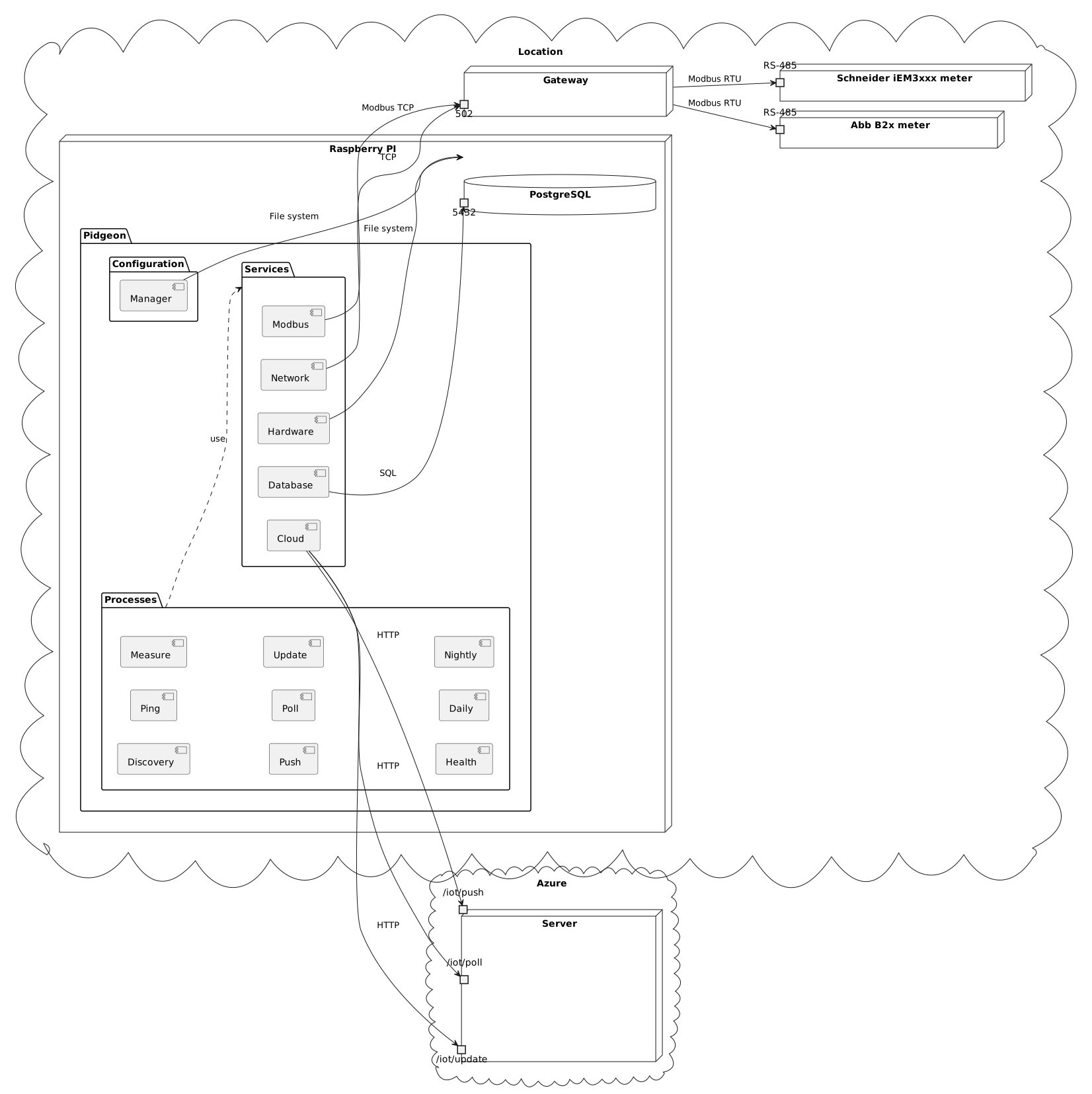
The architecture of Pidgeon is designed to efficiently collect and manage electrical billing data. The diagram below provides a visual representation of the system's architecture.
In the context of a location, there are various types of meters, such as the Abb B2x meter and the Schneider iEM3xxx meter, which are connected via RS-485. The Gateway, accessible via port 502, serves as an intermediary for data communication.
The Raspberry Pi hosts the Pidgeon application, which is divided into three main packages: Configuration, Services, and Processes.
- Configuration: This package contains the Manager component, responsible for managing the application's configuration.
- Services: This package contains several service components:
- Hardware: Interacts with the physical hardware of the Raspberry Pi.
- Network: Manages network communications.
- Modbus: Handles the Modbus protocol for communication with the meters.
- Database: Manages the local PostgreSQL database.
- Cloud: Handles communication with the cloud server.
- Processes: This package contains various processes that Pidgeon runs:
- Discovery: Discovers meters on the network.
- Ping: Regularly checks the health of the meters.
- Measure: Takes electrical measurements from the meters.
- Health: Checks the health of Pidgeon and stores it in the local database.
- Push: Sends measurements to the cloud server.
- Poll: Polls the cloud server for configuration updates.
- Update: Updates the server of meter and Raspberry PI health.
- Daily: Sets the daily tariff of the meters.
- Nightly: Sets the nightly tariff of the meters.
Please refer to the diagram for a visual representation of these components and their interactions.
Installation
The installation of Pidgeon involves several steps, each of which is detailed on its own page. Here's an overview of the process:
-
Generate Secrets: A script in the repository uses
sopsandopensslto generate secrets for a specific Raspberry Pi. This step is crucial for securing communication between the device and the server. -
Create ISO Image: Another script in the repository uses
nix buildto create an ISO image for the device. This image contains the Pidgeon application and all its dependencies. -
Inject Secret key: The secret key generated in step 1 is injected into the image using a script in the repository. The secret key is used to decrypt the secrets generated in step 1 during boot.
-
Assemble the Device: The ISO image is flashed onto a 1TB SSD. The SSD is then plugged into a USB port of the Raspberry Pi, and the power USB-C cable is plugged in.
Secrets generation
With command:
scripts/mksecrets <cloud_domain> <network_ip_range_start> <network_ip_range_end>
, this script generates a set of secrets for a specific Raspberry Pi device using OpenSSL and SOPS, and prepares them for injection into an ISO image.
Steps
-
The script takes three arguments:
cloud_domain,network_ip_range_start, andnetwork_ip_range_end. It checks if these arguments are provided, else it exits with an error message. -
It sets up directories for storing secrets and temporary secrets.
-
It generates a unique ID for the device and checks if secrets for this ID already exist. If they do, it exits with an error message.
-
It defines several helper functions for generating different types of secrets (IDs, keys, passwords, age keys, SSH keys, SSL certificates). These secrets are generated using OpenSSL, age-keygen, ssh-keygen, and mkpasswd.
-
It generates secrets for various components (altibiz, api, pidgeon, secrets, postgres) using these helper functions.
-
It creates a PostgreSQL script for setting up the database and users with their respective passwords.
-
It creates an environment file (pidgeon.env) with various configuration settings, including the database URL, cloud domain, API key, network IP range, etc.
-
It creates a YAML file (secrets.yaml) with the generated secrets.
-
It encrypts the secrets.yaml file using SOPS and the public age keys of altibiz, pidgeon, and secrets. The encrypted file (secrets.enc.yaml) is then copied to the src/flake/enc directory with the device's unique ID as its name.
After the script is done, the generated secrets can then be injected into an ISO image for the Raspberry Pi device.
Image Generation
With command:
scripts/image <id>
, this scripts generates an ISO image for a specific Raspberry Pi device using
the image script in the repository.
Prerequisites
Before you start, make sure you have generated the secrets for the device using
the mksecrets script. The image script requires an encrypted secrets file
for the device.
Usage
The image script takes one argument: id, which is the unique identifier for
the device. The script checks if an encrypted secrets file for this ID exists in
the src/flake/enc directory. If it does not, it exits with an error message.
Assembly
This chapter describes the final steps of the installation process, which involve flashing the ISO image onto a 1TB SSD, and assembling the Raspberry Pi device.
Flashing the ISO Image
To flash the ISO image onto the SSD, you can use the dd command on Linux or a
program like Rufus on Windows.
Linux
On Linux, you can use the dd command to flash the ISO image onto the SSD. First, identify the device path of the SSD by running lsblk. Once you have the device path, you can flash the ISO image with the following command:
sudo dd if=<iso> of=<device> bs=4M status=progress && sync
Replace <iso> with the path to the ISO image and <device> with the device
path of the SSD. This command writes the ISO image to the SSD block by block and
shows progress information. The sync command is used to ensure all data is
flushed to the device.
Windows
On Windows, you can use a program like Rufus to flash the ISO image onto the SSD. Here are the steps:
- Download and install Rufus from the official website.
- Plug the SSD into a USB port of your computer.
- Open Rufus and select the SSD in the 'Device' dropdown.
- In the 'Boot selection' dropdown, select 'Disk or ISO image' and click the 'Select' button to choose your ISO file.
- Click 'Start' to begin the process. Rufus will format the SSD and flash the ISO image onto it. Please note that all existing data on the SSD will be erased.
Assembling the Device
After flashing the ISO image onto the SSD, you can assemble the Raspberry Pi device.
Unplug the SSD from your computer. Plug the SSD into a USB port of the Raspberry
Pi. Plug in the power USB-C cable to power up the Raspberry Pi. The device
should now boot up from the SSD and start running pidgeon.
Secret Key Injection
With command:
./inject <iso> <key>
, this script injects the secret key into the ISO image for a specific Raspberry
Pi device using the inject script in the repository.
Prerequisites
Before you start, make sure you have generated the ISO image for the device
using the image script. The inject script requires an ISO image and a secret
key file.
Usage
The inject script takes two arguments: iso, which is the path to the ISO
image, and key, which is the path to the secret key file. The script checks if
these files exist. If they do not, it exits with an error message.
This is important because we want the scripts to be used by programs on the
device using nix, which requires the secrets to be encrypted in the repository
and decrypted on the device on boot.
Environment
This document outlines the development environment requirements for this
project. These requirements are necessary to execute the commands defined in the
justfile.
Requirements
- Rust: The project uses Rust, and the
cargocommand is used for building, testing, and running the Rust code. It's also used for generating documentation and formatting the Rust code. - Docker: Docker is used to manage services that the application depends on.
The
docker compose up -dcommand is used to start these services, anddocker compose down -vis used to stop them.
Optional Requirements
The following tools are optional for some workflows but recommended for development:
Probe
- Python: Python is used for the
probescript. You need to have Python installed to run this script. - Poetry: Poetry is used for managing Python dependencies.
Formatting
- Yapf: Yapf is used for formatting Python code in the project.
- Prettier: Prettier is used for formatting and checking the format of the code in the project.
- shfmt: shfmt is used for formatting shell scripts in the project.
Linting
- ShellCheck: ShellCheck is used for linting shell scripts.
- cspell: cspell is used for spell checking in the project.
- Ruff: Ruff is used for checking Rust code in the project.
- Clippy: Clippy is a Rust linter that's used in the project.
- Pyright: Pyright is used for type checking Python code.
Documentation
- mdbook: mdbook is used for building the documentation.
Stress testing
- GNS3: GNS3 is used to simulated networks.
Development Workflow
The development workflow is managed by just, a command runner that's similar
to make. The justfile at the root of the repository defines various commands
for building, testing, running, and managing the project.
Here are the steps to set up the development environment and use just:
-
Install Dependencies: Install all the required tools listed in this chapter.
-
Prepare the Environment: Run
just prepareto install Python dependencies, start Docker services, and run database migrations. -
Run the Application: Use
just runto run the application. You can pass arguments to the application by appending them to the command, likejust run --arg. -
Run the Probe Script: Use
just probeto run the probe script. You can pass arguments to the script in the same way as the run command. -
Format the Code: Use
just formatto format the code in the project using various formatters. -
Lint the Code: Use
just lintto lint the code in the project using various linters. -
Test the Code: Use
just testto run the tests for the project. -
Build the Project: Use
just buildto build the project. This will create a release build of the project and move the output to theartifactsdirectory. -
Generate Documentation: Use
just docsto generate the project's documentation. This will build the documentation and move the output to theartifactsdirectory.
Remember to run just prepare whenever you pull new changes from the
repository, to ensure your environment is up-to-date.
Services
The application sets up services after setting up logging and configuration.
Services are wrapped with a service container which is used by processes to access services. This is a convenience to avoid unnecessarily copying services in the application.
Network
The network service contains functions to scan modbus devices on the network.
Scanning modbus devices on the network is done by trying to open a configurable modbus port on all devices in a configurable ip range in a configurable timeout.
Hardware
The hardware service contains functions that return valuable information about hardware directly on the Raspberry PI.
This is mostly achieved by reading configurable files on the Linux filesystem.
Modbus
The modbus service manages communication with modbus devices.
Modbus communication can be broken down into levels of abstraction with their corresponding modules from bottom to top:
-
encoding- Contains functions for endianness conversion and packing of target modbus registers into target architecture bytes for reading operations and the reverse for writing operations. -
register,record,batch, andspan- Contain functions that pack and unpack spans of modbus registers into values. Theregistermodule contains functions that parse spans of modbus registers into target primitives and strings or bytes and is used for reading operations. Therecordmodule contains simple structs that represent spans of modbus registers and are used to write modbus registers as part of writing operations. Thebatchmodule contains functions that pack multiple spans of modbus registers into a single span for read operation optimization. Thespanmodule is an abstraction on the variousregister,record, andbatchmodule types. -
connection- Contains a modbus connection struct that allows for reading and writing and, in the case of a disconnect, reconnection to a modbus device. -
worker- Contains structs used to schedule reads and writes to a modbus server. For maximum data throughput, a worker task is spawned for each modbus server on the network.This worker takes in requests and tries to respond as fast as possible to all of them in a fair manner. This means that in the case of a modbus protocol exception, disconnect, timeout or any other kind of error, the worker will retry a configurable amount of times in a configurable timeout until it moves on to other requests. The worker loops over this process as long as there are any requests left to respond to and then it waits asynchronously for new requests.
Requests are split into the following categories:
- read requests - Requests for read operations which are split into two
different types:
- oneoff read requests - Requests to read a list of spans once
- streaming read requests - Requests to read a list of spans indefinitely, cancellable by the requestor
- write requests - Requests to write a list of spans
- read requests - Requests for read operations which are split into two
different types:
-
service- Contains the modbus service and associated structs. The service provides an abstraction for other parts of the codebase by hiding the worker implementation. Under the hood, the service manages the lifecycle of workers and exposes only functions for binding particular workers to devices via their identification string, stopping workers for a particular device via its identification string, and request and response forwarding functions.
Cloud
The cloud services manages communication to the cloud server.
This service is a thin wrapper that forwards push requests and responses to and from the HTTP client.
Database
Processes
The application starts processes after setting up logging, configuration and services.
Processes are started by the process container using a job scheduler which determines when they are started with cron expressions which can be configured.
When the application receives SIGINT or Ctrl+C on the keyboard it shuts down all the processes gracefully with a timeout of 60 seconds before exiting the main function.
The poll, update and health processes are not documented because there is still work to be done on the server before they become fully functional.
Discover
The discover process uses the network service and modbus services to detect all modbus devices on the network and save their information using the database service.
After scanning the network for modbus devices it tries to match those devices with known device types. This is accomplished via matching configurable registers with specified strings or regular expressions.
After device matching, the process consolidates matched devices and their types in the database. Consolidation is done by retrieving known devices via the database service and either modifying the new destination of known devices that are matched via configurable identification registers or by adding new devices.
Ping
The ping process checks the health of all known devices using the database and modbus services.
After retrieving the list of all known devices via the database service it pings them. Pinging is done by trying to read the device's configurable identification register. If the known device id matches the read id the ping was successful.
After pinging the devices get consolidated. Depending on whether or not the ping was successful the devices will get consolidated in different ways. If the device was successfully pinged it will enter or remain in the healthy state. If the device was unsuccessfully pinged it will enter the unreachable state unless a configurable threshold has been reached after which the device will enter the inactive state. These states are important markers for other services.
After the state of the device is determined it is stored via the database service. If the device device was previously unreachable and it entered the inactive state, it will be unbound to its destination via the modbus service, otherwise it will be bound to its destination via the modbus service.
If the new state of the device is different from its previous state, the state will be updated via the database service.
Daily/Nightly
The daily and nightly processes run at a configurable time of day to change the tariff of all known devices.
After retrieving all known devices from the database service it sets the configurable configuration and tariff registers via the modbus service. It is typical for modbus devices to have a tariff source configuration register that needs to be set so that the device reads its tariff from the modbus tariff register.
Measure
The measure process manages modbus device measurement streams created by the modbus service. This involves the creation of new streams, collection of measurements from existing streams and deletion of old streams. Existing streams are part of the state of the measure process.
Firstly, existing stream measurements are collected and verified. Verification is done by confirming that the collected identification registers match the expected device identification string. This is important in case that a device gets swapped with another and especially important if the new device is of a different type which could cause errors in the best case, because these errors cause exceptions in the modbus protocol, or bad measurement data in the worst case which can (not 100% guaranteed) only be detected by the cloud server because the Raspberry PI program doesn't know what to expect from these registers. It is also important to note that identification registers used for verification are always fetched last because if they were fetched first, there is a very slight chance that the verification passes with identification registers of the old device and measurement registers of the new device which would result in bad measurement data.
After measurement collection, the process fetches devices via the database service and adjusts measurement streams accordingly. This is done by matching measurement stream device identification strings and database device identification strings and then creating measurement streams for database devices which do not have a matching measurement stream and deleting measurement streams for which a matching database device was not found.
Push
The push process pushes measurements that haven't been pushed to the cloud server.
Firstly, the push process fetches the last successful push log via the database service to obtain the id of the last pushed measurement. Since the id of measurements is an incrementing integer generated by the database this is a valid way of fetching measurements that haven't been pushed to the server.
After obtaining the id of the last pushed measurement, the push process tries pushing measurements with higher ids up to the configurable count via the cloud service. If the push fails the process will try to push half the amount of measurements previously tried until the count reaches 1 in which case the measurement will be skipped and the count of measurements to push will be restored to the limit. This way of pushing is a good initial solution for trying to send bad measurements to the cloud server and for allowing the server to recover from congestion.
Finally, the push process inserts a successful push log via the database service.
Testing
This section is dedicated to testing.
Unit tests are not documented in the wiki as they are too verbose, but some E2E tests that are vital to the project are documented here.
Push
According to the architecture, from the standpoint of the Pidgeon, there are multiple points from which errors can occur. Starting from the gateways and going to the server, we can expect to see errors in these areas:
-
Gateway -> Pidgeon: Gateways are responsible to transmit measurements from meters to Pidgeon via a pull mechanism. There are a little million ways that this could go wrong, but from the standpoint of Pidgeon, only two categories of scenarios are relevant, the gateway is not sending data or the gateway is sending incorrect data.
-
Pidgeon: Pidgeon itself could stop working or have a bug that causes it to stop pulling data from gateways.
-
Pidgeon -> Server: Pidgeon sends measurements to the server. If the server is down or there is no connection to the server or there are request problems, the server will not be able to store the data.
Failures
Here is a list of failures that can occur in the push process divided into areas:
-
Gateway -> Pidgeon:
- Gateway is not sending data
- Gateway is sending incorrect data
-
Pidgeon:
- Pidgeon is not connected to the network
- Pidgeon throws an exception (software bug)
-
Pidgeon -> Server:
- Server is not connected to the network
- Server throws an exception (software bug)
Testing
To test resiliency in the push process, we can simulate failures in the following ways:
-
Gateway is not sending data: Stop the gateway and start it back up. The Pidgeon should be unaffected.
-
Gateway is sending incorrect data: Change the data that the gateway is sending. The Pidgeon should be able to detect the incorrect data and ignore it.
-
Pidgeon is not connected to the network: Disconnect the Pidgeon from the network and reconnect it. The Pidgeon should be able to detect the network failure and retry sending the data.
-
Pidgeon throws an exception: Introduce a bug in the Pidgeon that causes it to throw an exception. The Pidgeon should be able to catch the exception, log it and continue working.
-
Server is not connected to the network: Disconnect the server from the network and reconnect it. The Pidgeon should be able to detect the network failure and retry sending the data.
-
Server throws an exception: Introduce a bug in the server that causes it to throw an exception. The Pidgeon should be able to catch the exception, log it and continue working.